Everything Tap AAC does
Tap AAC is an AAC app for Android phones, tablets, foldables and Chromebooks: tap pictures to build a sentence, and Bella, the app’s own voice, says it out loud. Here is everything in it, grouped, with where to find each thing in the app.
Talking
Tap, build, say it
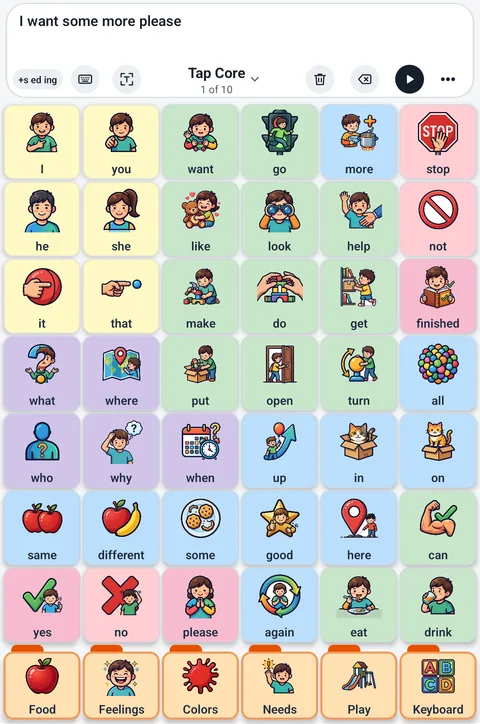
Tap a picture and Tap AAC says it. Tap a few in a row and they build a sentence in the bar at the top; play says the whole thing.
-
Tap to talk
Every button has a picture and a word. Tap one and Tap AAC says it out loud.
-
The sentence bar
Words collect in a bar at the top as they’re tapped. Play says the whole sentence, and Stop cuts it off.
On any page with the sentence bar
-
Room for the buttons
On a tablet there is no separate top bar: the page name and More sit in the sentence bar’s own row, so the buttons get the room.
Sentence bar
-
Two lines of words On to start
The bar shows two lines, so a long sentence stays readable. Choose one, two or three.
Settings › Touch & switches › Sentence bar
-
Clear, then Undo On to start
Clear empties the sentence in one tap, and right after, it turns into Undo in case it was a mistake.
Sentence bar
-
Fix a word
Backspace takes off the last word, and tapping any word in the bar takes that one out.
Sentence bar
-
Say each word as it’s tapped On to start
Hear every word as it goes in, or turn it off to build quietly and say it all with play.
Settings › Touch & switches
-
Word endings: +s ed ing
Tap the +s ed ing chip, then a word, and pick the form: apple to apples, want to wanted, big to bigger, I to me, my or mine. Went, ate and children are built in.
Sentence bar
-
Grammar help Off to start
After he, she or it, a doing word comes out matching: “he” and “want” says “he wants”.
Settings › Touch & switches
-
Show, in big letters
Puts the sentence across the whole screen in giant letters for someone who can’t hear it. Say it reads it out and lights each word.
Sentence bar › Show
-
Quick phrases Off to start
A row of up to 6 one-tap phrases under the sentence bar on every page, like Stop, I need help, More and All done. Change the words, or record your own voice.
More › Quick phrases, or Settings › Quick phrases
-
Saved phrases and recent sentences
Keep a whole sentence for one tap later. The last 10 sentences said are kept too, ready to say again.
Book menu › Saved phrases
-
Folders and the book menu
A button with a folder tab opens another page, and most folders bring the person back after one word, with the sentence. Tap the page name to jump to any page, Home included.
Any page
-
Opens where you left off On to start
The book opens on the last page used, and a sentence left in the bar is still there.
Settings › Display
Word Guesses
A talking screen that guesses the next word
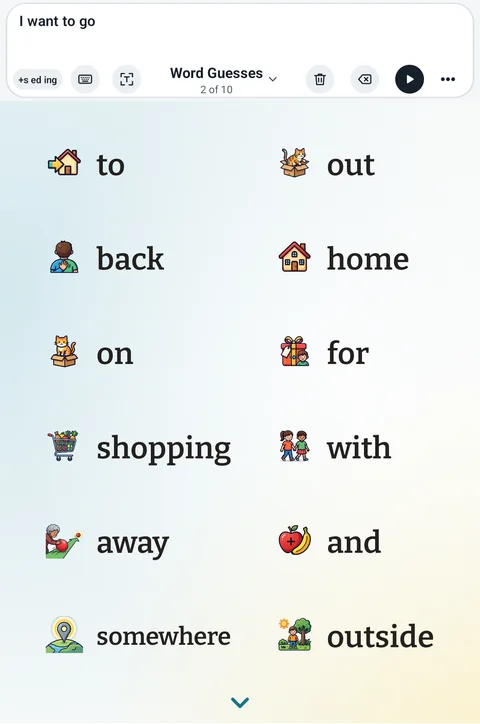
Word Guesses is a page of the words most likely to come next, each with a picture. Tap one and the page fills with what can follow it, so a sentence grows one guess at a time. It learns how the person talks.
-
One page, the next words
It starts with yes, no and OK, then I, you, what, please, help and more. After each word, the page changes to the words that usually follow it.
Page library › Books
-
Big, calm words
The same sentence bar as every page, with word endings, Keyboard, Show and More; below it the guesses as big words with small pictures, and an arrow for more words. Word endings work on the guesses too: tap +s ed ing, then a word, and pick wants, wanted or wanting.
Opens when a Word Guesses page is shown
-
Learns how they talk On to start
Once about 200 words have been said, the guesses offer the person’s own words first: the words they say after other words, their usual first words, and names or favorite things they type.
Settings › Word diary & reports › Word guesses
-
Looks two words back
“use the” brings up bathroom, and “watch a” brings up movie. The typing screen’s guesses use this too.
Word Guesses and the typing screen
-
Modeling doesn’t count
Words shown while Modeling is on, or tapped in the editor, are never learned. “Forget what they learned” starts fresh.
More › Modeling
-
Make it Home
Make Word Guesses the book’s Home, and Tap AAC opens straight on it.
Page library › Make it Home
-
Every access setting
Hold to speak, speak when the finger lifts, pause before repeat, switch scanning and high contrast all work on the guess screen.
Follows Settings
Words and books
Ready-made words for day one
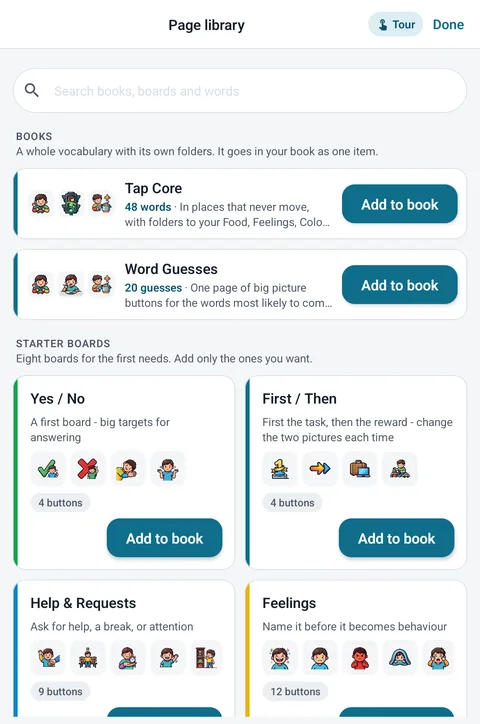
The Page library is one place to add vocabularies, boards, scenes and printable pages. A new tablet starts empty, so the family picks what goes in.
-
Tap Core
48 core words on one page, each always in the same place, so the hand learns where every word lives.
Page library › Books
-
Tap Chatter
A whole vocabulary in one book. The most useful words stay in the same place, and after each word the next likely words come up, so a sentence takes fewer taps.
Page library
-
Tap Core 60
A second whole vocabulary, as one book: 60 buttons a page, with the Home page reading left to right like a sentence and folders along the bottom.
Page library
-
Vocabulary Builder
Show 12, 24, 36 or all 48 words, or pick them. Hidden words keep their space, so nothing moves as more appear. Babble shows every word for a while, to explore.
Page options › Vocabulary Builder
-
41 ready-made boards
Yes and no, first and then, help, feelings, food, colors, about me, bedtime, the store, eating out, school, bath time, art, music, circle time and more. One page each, with a picture and Bella’s voice on every button.
Page library
-
20 scenes that talk
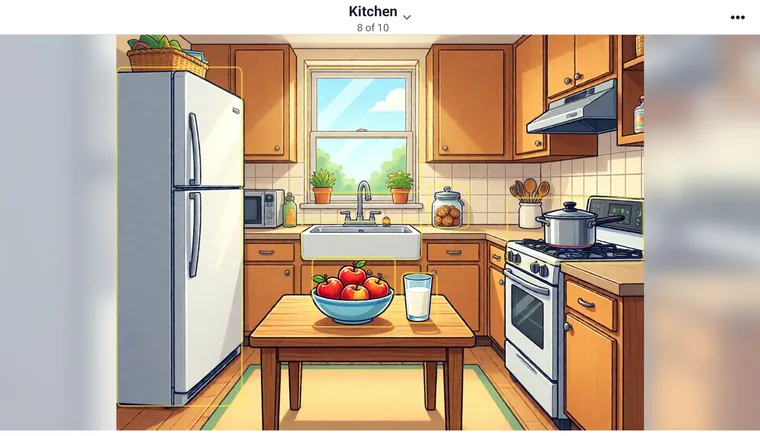
A picture of a real place with talking spots: the kitchen, the bathroom, the playground, a classroom, the doctor’s and the dentist’s office, the grocery store, the zoo and more.
Page library
-
139 printable pages that talk
The free printable boards from this site, in the app, looking just like the paper, with every printed button talking.
Page library
-
Make a board
Type a topic, like “farm” or “dentist”, or your own words, like “dog, ball, Jayden”, and get a page with matching pictures. It all happens on the tablet.
Page library › Make your own
-
Bring in boards from other AAC apps
Open Board files (.obf and .obz), including the “Add to Tap AAC” files on our free boards, become new pages. Nothing already in the book changes.
Page library › Import a board file
-
Share boards back out
Send one page to another Tap AAC, or save a page and its folders as an .obz file that other AAC apps open.
Page options › Share
-
Make it Home
Any book or page can be the Home page. Adding a book never changes Home.
Page options
Pictures and voice
Pictures that look like one family, and a voice that’s always there
More than 6,000 pictures, all drawn in one style for Tap AAC, and Bella, the app’s own voice, built in.
-
More than 6,000 pictures
All drawn in one clear style for Tap AAC, with no emoji and no outside sets.
Button editor
-
A picture chooser
Search by word, or browse tabs like Core, People, Feelings, Food, Actions, Places and Animals. Pictures for the word on the button come up first, one tap each.
Button editor
-
Your own photos
Take a photo with the tablet’s camera or pick one from the photo library. Tap AAC never asks for camera access, and big photos are made button-sized.
Button editor › Photo
-
Your own voice
Record a voice on any button, quick phrase or talking spot. Silence at the ends is trimmed.
Button editor › Voice
-
Bella On to start
The app’s own natural voice. Over 10,000 words and phrases are recorded in her voice, she says every picture, and she needs no internet.
Settings › Voice
-
Bella reads what’s typed On to start
Typed words, names and guesses are read by Bella too, on the tablet itself.
Settings › Voice
-
Other voices and speed
Pick any voice installed on the tablet, and set how fast it talks.
Settings › Voice
-
A video on a button
A button can play a short video, with sound, in a square in the middle of the screen. Settings sets how long a video can be (5 to 40 seconds). Videos stay on that tablet.
Button editor › Video
-
Other sound goes quieter On to start
Music or a video playing on the tablet dips while Tap AAC talks.
Automatic
Making it theirs
Change any button in seconds
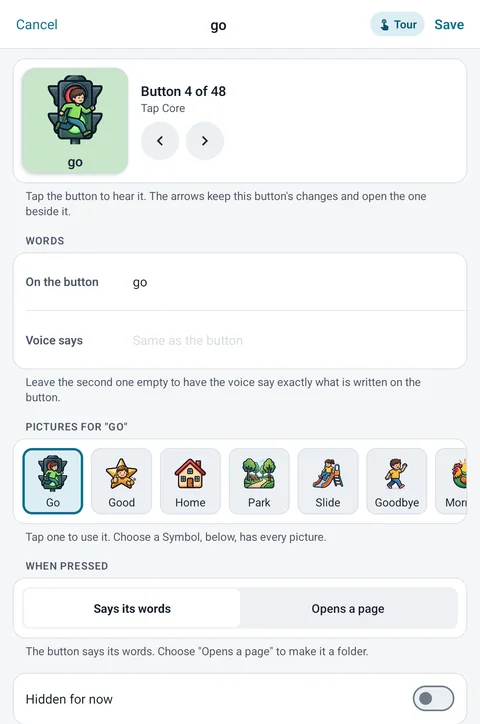
Edit pages is the same board with editing switched on. Tap any button, or an empty place, to change or add it. Changes save as you go.
-
The button editor
One screen with a live preview of the button: tap it to hear it. Arrows move to the next button, so a whole page fills in one go.
Edit pages › tap a button
-
Words shown and words said
The button can show “happy” and say “I feel happy”, with ideas for longer phrases one tap away.
Button editor
-
Colors that mean something
Pick a color, or take the color-key suggestion: yellow for people, green for actions, blue for describing words, orange for things.
Button editor
-
Folders and hidden buttons
A button says its words or opens another page like a folder. It can be hidden for now, keeping its place for later.
Button editor › When pressed
-
Saved buttons
Keep a finished button to put on any page later.
Button editor
-
The tools in More
While editing, More holds Undo, Page options and New page.
More, at the end of the sentence bar
-
Undo
Takes back changes one at a time.
More › Undo
-
Reset a page
A ready-made page, scene or printable goes back to how it came, and your own page is emptied. It asks first, and Undo works.
More › Page options › Reset
-
New pages
A grid of 1 to 48 buttons (blank, a ready-made board or Make a board), a scene from your own photo, or a picture keyboard.
More › New page
-
Your own scenes
Use a photo of your own room, add talking spots, drag and size them, and make each one speak, play a recording or open a page.
New page › Visual scene
-
Page options
Name, background color, number of buttons (making it smaller never deletes a button), fill empty places with matching pictures, the sentence bar on or off, print and share.
More › Page options
-
Earlier copies
Tap AAC keeps the last 5 versions of the book from before it was emptied, restored or changed from the cloud, and can put one back.
Settings › Backup & reset
Typing
A typing screen for any word
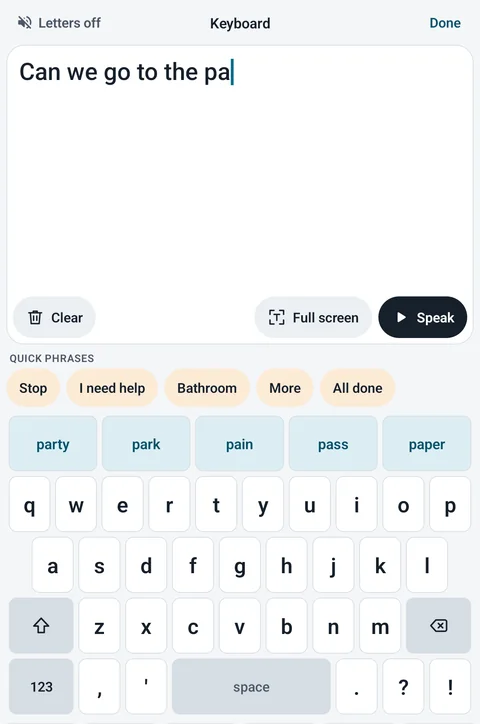
When a word isn’t on a button, a full typing screen opens from the sentence bar. What’s typed lands in the same sentence.
-
The typing screen
Big writing at the top with Clear, Undo, Full screen and Speak, quick phrases, word guesses, letters and punctuation. Numbers are behind the 123 key.
Sentence bar › Keyboard
-
Letters on or off Off to start
Hear each letter as it’s typed, or type quietly and hear the whole word at Space.
Typing screen
-
Word guesses
Guesses the word as it’s spelled and the next word after it, looking two words back, and learns the person’s own words.
Typing screen
-
Missing apostrophes fixed
“dont” offers don’t, and “im” offers I’m.
Typing screen
-
Typing shortcuts
Type a few letters, then Space, and a whole phrase goes in: “ty” becomes “thank you”. Up to 50.
Settings › Quick phrases
Every screen
Phones, tablets, foldables and Chromebooks
Tap AAC is built to Android’s large-screen guidelines. It follows the size of the window, not the kind of device, and a page’s buttons never change places.
-
Phones
Upright, the full board fits with a slim bar for the page name and More. On its side, the bar and the sentence share one row.
Automatic
-
Tablets, big and small
The board fills the screen. On a very wide window it stops growing and stays centred, so the buttons stay a sensible size.
Automatic
-
Buttons never reshuffle
A page’s buttons keep their order and their places in every window, so turning or resizing never undoes what the hand has learned.
Automatic
-
Foldables
Half-folded like a laptop, the buttons go below the fold and the sentence, in big letters, above it, readable across the table. Opened like a book, the board splits either side of the fold.
Automatic
-
Chromebooks and windows
It opens as a window that can be resized or put in split screen; rotating, folding or resizing never restarts it, and the sentence stays.
Automatic
-
Bigger screens, calmer menus
On a big screen, Settings, the Page library and Help open as a panel in the middle, and the button editor opens beside the board.
Automatic
-
A keyboard
Arrow keys and Tab move a ring over the buttons and Enter presses. Enter speaks the sentence, Backspace removes a word, and Esc closes a menu or the typing screen without leaving the board.
Any keyboard
-
A mouse, trackpad or stylus
Buttons light up under the pointer, and a right-click does what a long press does.
Automatic
Access
For every hand and every pair of eyes
Settings for the way each person moves, sees and touches the screen.
-
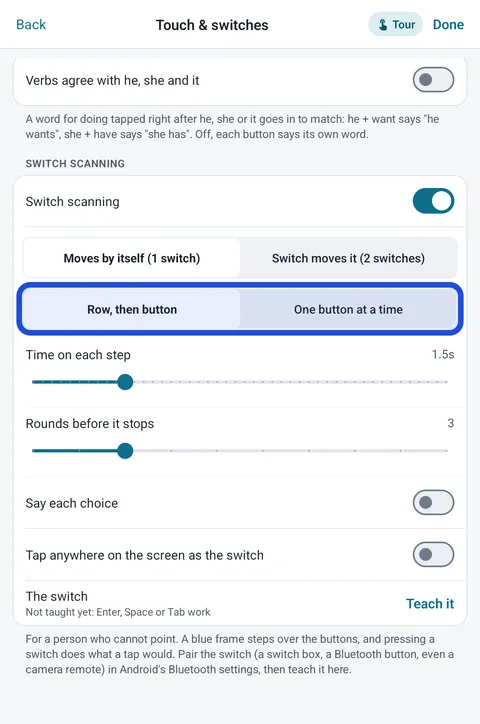
Switch scanning Off to start
A frame steps over the buttons, a row at a time then a button, and a switch press does what a tap would. One switch (it moves by itself) or two (move and choose). Teach it any switch that sends a key: a switch box, a Bluetooth button, even a camera remote. Or use the whole screen as the switch.
Settings › Touch & switches › Switch scanning
-
Hold to speak Off to start
A button waits until the finger has rested on it, with a filling ring, so a resting hand doesn’t talk.
Settings › Touch & switches
-
Pause before repeat Off to start
Stops one shaky press landing five times.
Settings › Touch & switches
-
Speak when the finger lifts Off to start
Waits for the release, so a press that slides off doesn’t speak.
Settings › Touch & switches
-
One finger counts On to start
While one finger is on a button, a resting hand or a second finger does nothing.
Automatic
-
Dark mode, high contrast, reduced motion
Dark bars and menus (the buttons keep their colors), deeper text and borders, and no press animations or fades.
Settings › Display
-
Large text
Each button’s word has its own size. Menus follow the tablet’s font size, and the board keeps its layout.
Button editor › Word size
-
Capital first letters Off to start
Shows “Big Red Ball” on buttons, whatever was typed.
Settings › Display
-
The screen stays awake On to start
Tap AAC keeps the screen on so a slow tapper is never cut off, or lets the tablet sleep after 30 minutes untouched.
Settings › Display
For the people who help
Tools for parents, teachers and therapists
Set it up, keep it safe, and see how it’s going.
-
Protect editing with a PIN Off to start
A four-digit PIN on Edit pages, the Page library and Settings. Talking and the sentence bar never need it. Forgot the PIN? A grown-up question gets you back in.
Settings › Lock & app pinning
-
Keep on screen Off to start
Pins Tap AAC with Android’s screen pinning, so Home, Overview and notifications are off, and it pins itself again every time it opens.
Settings › Lock & app pinning
-
Modeling
Show words on the person’s own board and they speak, but they don’t count as the person’s own in the word diary or in Word Guesses’ learning.
More › Modeling
-
Word finder
Search any word to see the way to it, like Home, Food, Pizza. The next button glows, step by step.
Book menu › search
-
Guided tours, read aloud
Tours on the real screen, read aloud by Bella, with “your turn” steps. Offered on a new tablet.
Help › Guided tours
-
The word diary On to start
Writes down each word said, with the time, on the tablet. It is on to start and easy to turn off. Taps made while modeling are kept apart.
Settings › Word diary & reports
-
Word report
The last 30 days of the person’s own words and the most used ones.
Settings › Word diary & reports
-
Vocabulary check
Reads the book itself: how many different words, which core words are there and how many taps each takes from Home, and the kinds of words covered. It suggests; it doesn’t score.
Settings › Word diary & reports
-
A report for the therapist
The vocabulary check and the diary’s last 30 days, printed or saved as a PDF.
Settings › Word diary & reports
-
Print a page
A paper copy of a page as it looks when talking, for when the tablet is charging or left at home.
More › Page options › Print this page
Sharing, all optional
One book, shared with the people who help
No account is needed to talk or edit. Sign in with Google only to keep the book in your account, use it on more than one tablet, or share it.
-
Sign in with Google Off to start
Keep the book in your account and use it on more than one tablet. A change on one reaches the others within seconds when online. Photos and recordings in the book go too.
Settings › Account & sharing
-
Invite the people who help
Invite a speech therapist, teacher or family member with a one-time code from the app (it works once and runs out after 7 days), or a link or QR code from the web app.
Settings › Account & sharing
-
Can edit or Can look
Choose what each person can do. The owner can change it or remove someone, and anyone else can leave.
Account & sharing
-
The web app
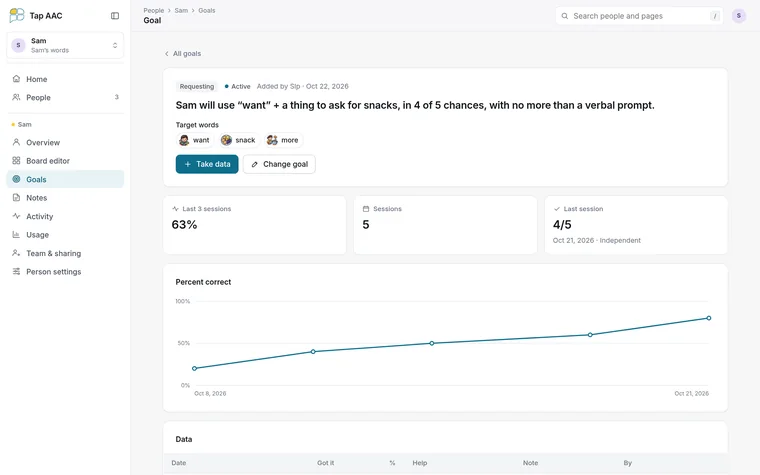
At tapaac.com/app the team can edit the book from a computer, track goals with session data, keep notes and see who changed what. Signing in there is free.
-
What stays on each tablet
Settings, quick phrases, saved buttons and phrases, videos and recorded messages stay on each tablet. The word diary never goes into the shared book.
-
Delete the account
Deletes the account and the books it owns from the cloud. The tablet’s own book stays.
Settings › Account & sharing
Backup and price
Your book is safe
Back it up to one file, move it to a new tablet, and never lose it when the trial ends.
-
Save a backup
One file with every page, button, picture, recording, saved button and phrase, quick phrase, the word diary and typed words. Save it to Files or share it.
Settings › Backup & reset
-
Restore
Reads a backup onto any tablet with Tap AAC. The book being replaced is kept under Earlier copies first.
Settings › Backup & reset
-
Restore purchase
The unlock belongs to your Google account, so a new tablet gets it back.
Settings › About & purchase
-
Android 8.0 or later
Phones, tablets, foldables and Chromebooks, upright or on their side.
-
30 days free, then $29.99 once
Everything, with no limits, from the first launch. Then one payment through Google Play. No subscription.
-
Nothing is ever deleted
When the trial ends the book, photos and recordings wait on the tablet, a backup can still be saved, and unlocking opens everything as it was.
-
No ads, no analytics
There is no advertising, analytics or crash-reporting code in the app.

Try every feature free for 30 days
Then $29.99 once through Google Play. No subscription, and nothing is ever deleted.